
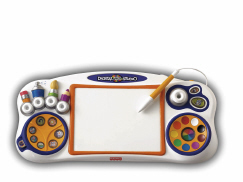
Digital Arts and Crafts Studio
Product Desciption:
1. Natural stylus mouse and digital drawing surface,
2. All craft programs and features are easily accessed right on the base by simply touching them with the stylus,
3. Easy on with the touch of a button.
Safe for kids because moms can
1. password protect the program to keep kids engaged and
2. limit the number of printouts.
Additional Craft Kits in popular themes can be purchased separately.
Instruction Sheets
Click on a link below to view the Adobe PDF Format Instruction Sheet. To ensure proper operation, please download ALL instruction sheets for your product.
Frequently Asked Questions
-
What are the best kind of batteries to use in Fisher-Price® and Mattel® products?
A. We recommend using alkaline batteries with our products, as they are great for long-term use and help optimize performance. We don't recommend using Carbon-Zinc batteries. While Carbon-Zinc batteries may work well with low-power devices, they can drain after a short period of time and cause certain products to not function properly.
-
When installing the Digital Arts and Craft Studio, I received the Code 2753 DACS Mini app is not marked for installation error? What do I do?
The error appears after the Digital Arts and Craft Studio is being reinstalled and the MiniApp was not removed during the uninstall process. There may also be a corrupted installation that needs cleanup.
- Uninstall the Digital Arts and Craft Studio, if the option exists in the Start Menu or Add/Remove programs.
- Click Start then Run
- Type %programfiles% into the dialog box.
- Click OK.
- Double-click the Fisher-Price folder.
- If the folder does not exist, close the window and reinstall.
- If the folder does exist, delete the DACS folder, close the window and then reinstall.
-
During install, my Digital Arts and Crafts Studio is not detected, the system makes several attempts and fails to find the device. What can I do?
Check the operating system:
- The Digital Arts and Crafts Studio requires the US English version of Windows® 2000, Windows® XP 32-bit or Windows® Vista™ 32-bit. If you use another language, please call Fisher-Price Consumer Relations for assistance.
Try switching ports
- The Digital Arts and Crafts Studio is a USB device. Try switching ports preferably a port that is known to work with another device such as a printer or a camera.
Avoid USB hubs:
- Plug directly into the computer. If your computer system still does not detect the Digital Arts and Crafts Studio please call Fisher-Price Consumer Relations for assistance.
Purchase Parts
Sorry, replacement parts are not currently available for this product