
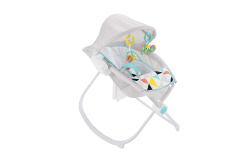
Fisher-Price® Premium Auto Rock ‘n Play Sleeper with SmartConnect™
Product Desciption:
Features:
Look at that! Soothing light show projection, with optional vibrations, help calm baby
Two speeds and two customizable modes for naptime or night time
Save your favorite settings with convenient presets
Includes up to 20 minutes of soothing sounds and music, plus volume control
Control and customize baby’s experience from your smart device with Smart Connect™ technology
Machine-washable pad, plush head support, and canopy create a cozy environment for snoozing
Includes 2 removable link toys
Comfortable inclined seat for babies who need it
Easily folds for storage or soothing on the go
Frequently Asked Questions
-
Smart Connect™ App FAQ
Smart Connect FAQs
General Questions:
Q: What devices are compatible with the Smart Connect app?
A: Most iOS and Android phones are compatible. See fisher-price.com/smartconnect for a list of known compatible devices.
Q: How do I connect my phone or tablet to my Smart Connect product for the first time?
A: Tap on “Instructions” above, then tap on the link for the instructions for the product that you have. Please use the Smart Connect app to pair your phone or tablet with the Smart Connect product and not the Bluetooth Settings on your phone or tablet.
Q: When I try to pair my phone or tablet with my Smart Connect product, it asks me for a PIN. What should I use for the PIN?
A: Please use the Smart Connect app to pair with your product, not your Bluetooth settings on your phone. No PIN will be required if you pair through the Smart Connect app.
Q: What should I do if I’m having a hard time pairing my phone or tablet with my Smart Connect product?
A: First, make sure your Smart Connect product is turned on and that your phone or tablet is within 6 ft (2,9m) of your product. Depending on the product, press the pairing button or hold down the power button to initiate pairing (refer to your product’s instructions for full details). On the main screen, use the left and right arrow icons to scroll through all of the available products. A picture of your product with a yellow or green border around it should appear. If you do not see a product icon with a yellow or green border around it, there may be a problem with your phone or your product. Please use the “Give Us Feedback” button below so that we can assist you.
Q: I don’t see my Smart Connect product in the app. What’s the problem?
A: From the main screen, use the left and right arrow icon buttons to scroll through all available products.
Q: Why do I see a message that asks me to update my product’s software?
A: Occasionally, we update the software on Smart Connect products to improve performance or add features. To ensure best performance, please update the software when asked. It should only take a few minutes. Keep the app open and within range of your product while it is updating. If it fails, restart both the product and the app, then try again. If it continues to fail when updating the software, please use the “Give Us Feedback” button below so that we can assist you.
Q: How often should I need to pair the app to my Smart Connect product?
A: You should only need to pair the app once, unless you delete the app or there is an update to the app that requires it.
Q: I see a message that says, “Someone else is already connected.” What does that mean?
A: Only one person in your home can control the Smart Connect product at a time. If someone else in your home is controlling the Smart Connect product through the app, he or she will need to close the app before you can use it. If you see “Someone else is already connected” when you know nobody else in your home is connected, please wait 30 seconds before attempting to re-pair with your Smart Connect product. If it has the problem after 30 seconds, use the “Give Us Feedback” button below so that we can assist you.
Q: Can I control more than one Smart Connect product at a time from my phone or tablet?
A: Yes, you can!
Q: Can I control my Smart Connect product from more than one phone or tablet at the same time?
A: No, only one phone or tablet can control your Smart Connect product at a time. One person will have to close the app (or disconnect) for the other to take control.
Q: How far away can I be from my Smart Connect product before it stops working?
A: You can control your Smart Connect product from up to 150 ft. away. However, walls and objects in your home may reduce this distance.
Q: My app shows that it is not connected, even though I’ve connected to it before. What’s the problem?
A: First, try getting closer to your Smart Connect. You may be too far away to control it. Then, please wait 30 seconds for it to establish a connection. If your Smart Connect product uses batteries and is not plugged in for power, it may have gone into a low-power mode. Press any button on the Smart Connect product to wake it back up. It will go back into a low-power mode after 25 hours of no activity.
Q: Can I add music from my phone or tablet to my Smart Connect product?
A: No, the app does not currently allow your personal music to be played by your Smart Connect product.
Q: What is the Smart Sensor (Smart Connect 4-in-1 Mobile only)?
A: The Smart Sensor can detect noise near the Smart Connect 4-in-1 Mobile. If you turn the Smart Sensor on, you will get a notification when the mobile hears a noise (as long as the music and projector are off).
Q: How sensitive is the Smart Sensor?
A: The Smart Sensor can be adjusted as needed, but it will not send notifications if your child is making intermittent or occasional noises. The app will only alert you when the child is making sustained noise for several seconds.
Q: I have more than one of the same Smart Connect product. How can I tell which one is which in the app?
A: From the main screen on the app, tap the picture of one of your products. If you tap on the name of the product at the top of the screen, you can rename it to whatever you want! Then it will be much easier to tell the difference between your products.
Q: What are Smart Messages?
A: Smart Messages can send you notifications on your phone or tablet about your Smart Connect product. For example, they can tell you when the music and/or motion timer is about to stop. Smart Messages must be turned on in order to use the Smart Sensor on the Smart Connect 4-in-1 Mobile. Other users in your home may not be able to control your product while Smart Messages are turned on and the app is open on your phone.
A: When you see the Pause All Settings button, press it to turn off all features on your Smart Connect product at the same time. The app will remember what it was doing when it was paused. Then, you can press the Play All Settings button to have your Smart Connect product resume all features that were on when it was paused.
Q: How do I use the Save Settings buttons?
A: The Save Settings buttons are presets that you can use to save your favorite combinations of features on your Smart Connect Product. First, turn on all of your favorite settings, then press the “1” or “2” button. The next time you press that button, it will turn on all of your favorite settings. You can set two presets this way. If you want to overwrite one of the presets, simply press and hold the “1” or “2” button. You will get a visual indication when the new preset has been saved.
Purchase Parts
Sorry, replacement parts are not currently available for this product